Apps · No. 04 · Desktop workspace
Desktide: Sticky notes, calendar and organizer on your Mac desktop

Your desktop, as a workspace
macOS gives the desktop a wallpaper and a pile of icons. Widgets are small and hide behind windows, Stickies float on top, and organizer wallpapers are pictures that never change.
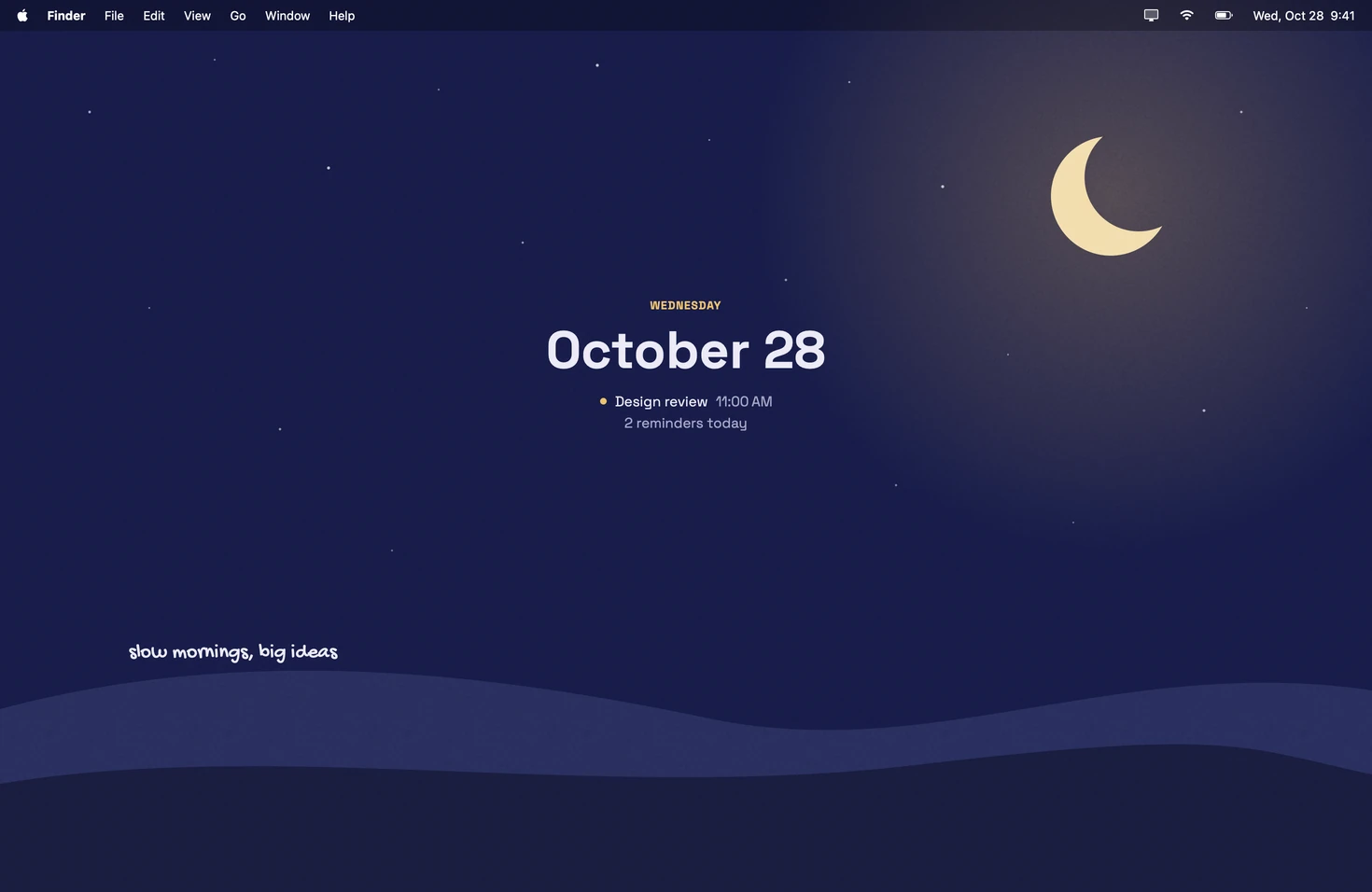
Desktide makes the desktop itself the place where you write, organize and plan. It doesn’t add widgets on top: the wallpaper changes layout. A month calendar you type straight into, today’s list with the week below it, a free board you write anywhere on, or just your wallpaper with a quiet summary of the day.
Sticky notes, written on the desktop
Double-click anywhere on the desktop and write. Notes sit on the wallpaper, under your windows, so they’re there when you clear the screen and never in the way when you work. Start a line with “[ ]” for a checklist, pick a handwriting face, drag a note where you want it. Notes sync to your other Macs through your own iCloud.
Comparing it with the Mac’s own Stickies and Notes widgets? Read how to put sticky notes on your Mac desktop.


A desktop calendar you can type into
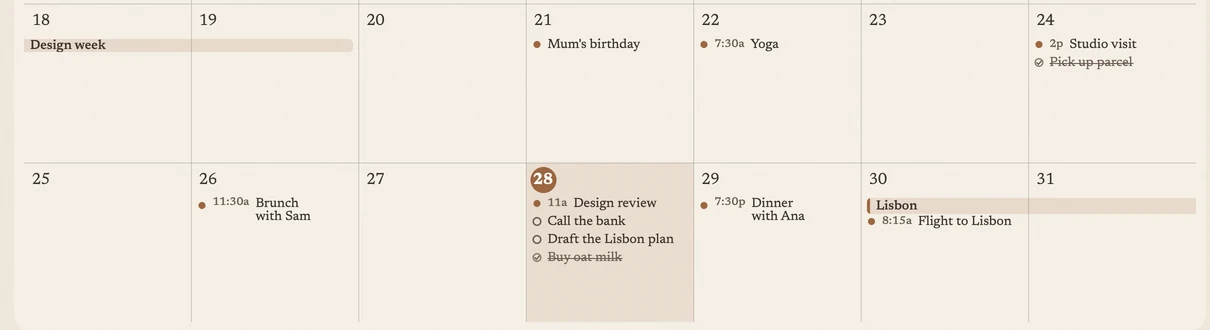
The Month layout turns the whole desktop into a calendar. Double-click a day and type. “Dentist Friday 10:00” becomes an event; anything else becomes a reminder on that day. Tick reminders in place, rename them, or make one an event.
It’s your real Apple Calendar and Reminders, two-way, so what you add reaches your iPhone and sends its usual notifications. Google and Outlook calendars work too, once they’re added to Calendar on your Mac.
Comparing it with Apple’s Calendar widgets and Google Calendar? Read how to put a calendar on your Mac desktop.
A desktop organizer with real folders
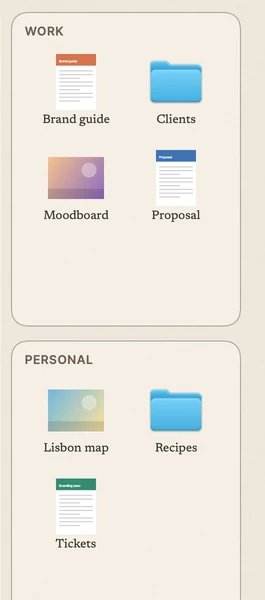
Zones are titled areas on the desktop, like the boxes on an organizer wallpaper, except they hold your files. Each zone is a real folder on your Desktop. Drop files on a zone to move them in, or let a zone collect screenshots, documents or images, and tidy the whole Desktop into zones in one step. One Undo puts everything back.
Zones are optional and ask for Desktop access only when you turn them on. Without it, they’re labels you arrange icons under by hand.
Want the built-in options first? Read how to organize your Mac desktop.
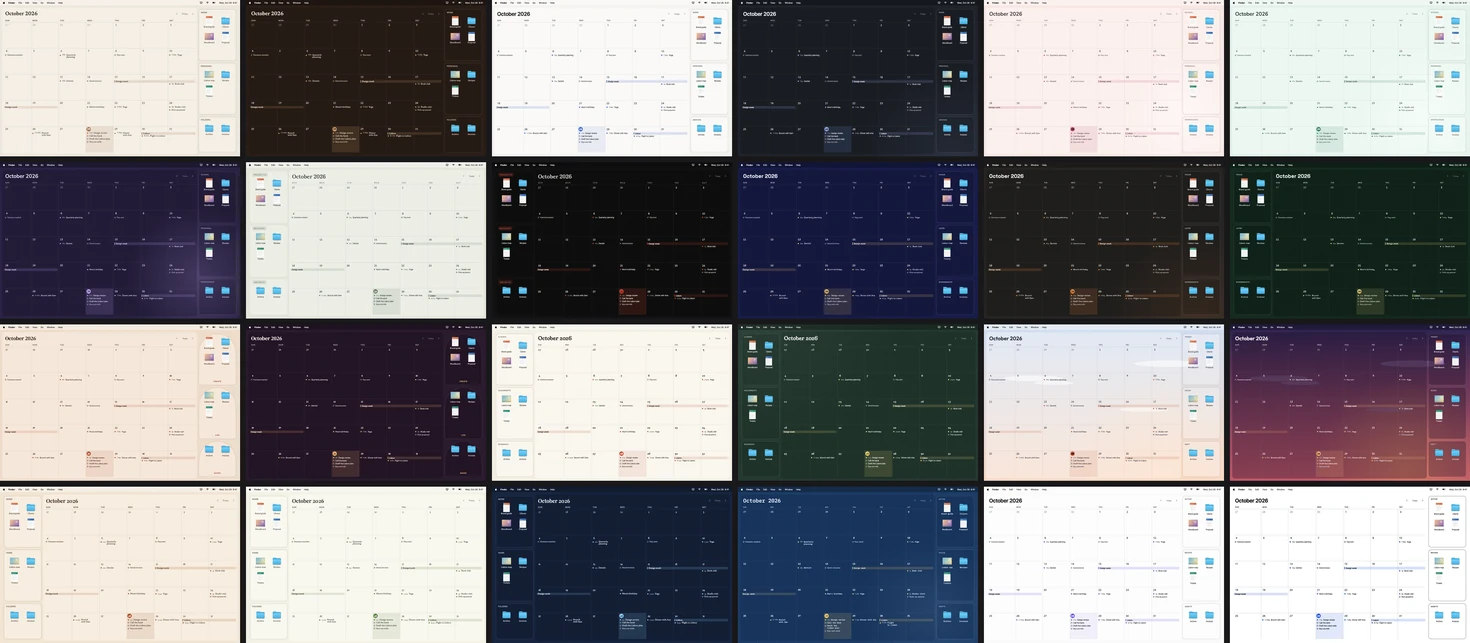
Four layouts, 24 themes
Switch with a shortcut or from the menu bar. Each display can have its own.
- Month
- The full desktop as a month grid, with multi-day events as bars
- Today + week
- Today’s list with big checkboxes, and the week underneath
- Board
- A free canvas: notes, checklists and handwriting anywhere
- Wallpaper
- Your wallpaper with a small summary: the date, the next event, what’s open
- Themes
- 24 in 10 families, from warm neutral and Japandi to dot journal and night skies, each with its own art and type, in light and dark
When the desktop is covered
Every gesture and shortcut, section by section, is in the Desktide user guide.
New to desktop widgets? Start with how to add widgets to your Mac desktop.
Today in the menu bar.
A popover with today and the next six days, and one field that adds an event, a reminder or a note.
A widget.
Today’s plan in small, medium and large, in your theme’s colors.
Shortcuts and Siri.
Add a note to the desktop, add an event or reminder, ask what’s on today, switch the layout.
Focus filters.
Switch the desktop layout when a Focus starts, and back when it ends.
Keyboard and VoiceOver.
Move through notes and entries from the keyboard, rebind every shortcut, choose a larger text size.
Quiet.
A native app that draws only when something changes. No account, no tracking.

Availability
Desktide is coming soon to the Mac App Store, for macOS 15 or later. The price will be announced at launch.
We’ll use your address only to send that one note.Questions
Can I put sticky notes on my Mac desktop?
Yes. Double-click an empty spot on the desktop, type, and the note stays there, drawn on the wallpaper rather than floating over your windows. Start a line with “[ ]” to make a checklist you tick in place.
How do I get a calendar on my Mac desktop?
Choose the Month or Today + week layout. Desktide draws your Apple Calendar events and Reminders straight onto the desktop, and you can type into a day to add a new one.
Does it work with Google Calendar or Outlook?
Yes, once the account is added to the Calendar app on your Mac (System Settings → Internet Accounts). Desktide reads and writes through macOS Calendar, so whatever shows there shows on your desktop.
Is it a live version of a desktop organizer wallpaper?
That’s the idea. Organizer wallpapers are pictures with boxes for icons and a printed calendar. Desktide’s 24 themes look the part, but the calendar is live, the zone titles are editable, and every theme fits any screen in light and dark.
Is there a Fences for Mac?
Stardock’s Fences is a Windows app. Desktide’s zones are the Mac take on the same idea: each zone is a real folder on your Desktop, so dropping files on it moves them there, and “Tidy Desktop into Zones” sorts screenshots, documents and images in one step, with Undo.
Will it get in the way of Finder?
No. Your desktop icons stay on top and keep working: select, drag, right-click and double-click as usual. Desktide only takes a click on its own notes, entries and zones.
Does it need access to my calendar?
Only for calendar features, and it asks the first time you add an event or reminder, never at launch. Notes, the Board and zones work without it.
Will it slow down my Mac?
It is a native Mac app that draws only when something changes. In our measurements during development it used about 20–25 MB of memory and no CPU at rest.
When is it out, and what will it cost?
Desktide is coming soon to the Mac App Store. The price will be announced at launch. Write to info@qiffe.com and we’ll tell you when it’s out.