How to put sticky notes on your Mac desktop
Yes, you can put sticky notes on your Mac desktop, and you don’t need to install anything to do it. Every Mac comes with Stickies, a small app that puts colored notes on your screen. This guide shows how to use it well on macOS 27, how to make notes stay put and survive a restart, where it falls short, and what to use instead when it does.
We checked every menu and shortcut below on macOS 27.0.1, in the apps themselves and against Apple’s Stickies User Guide.
Make a sticky note with Stickies
- Open Stickies: press Command-Space, type Stickies and press Return. It’s also in the Applications folder.
- The first time, Stickies shows two sample notes. Click the close box at the top left of a note to delete it.
- Choose File > New Note or press Command-N. A yellow note appears.
- Type. There’s no Save button: Apple’s guide says your content is saved automatically.
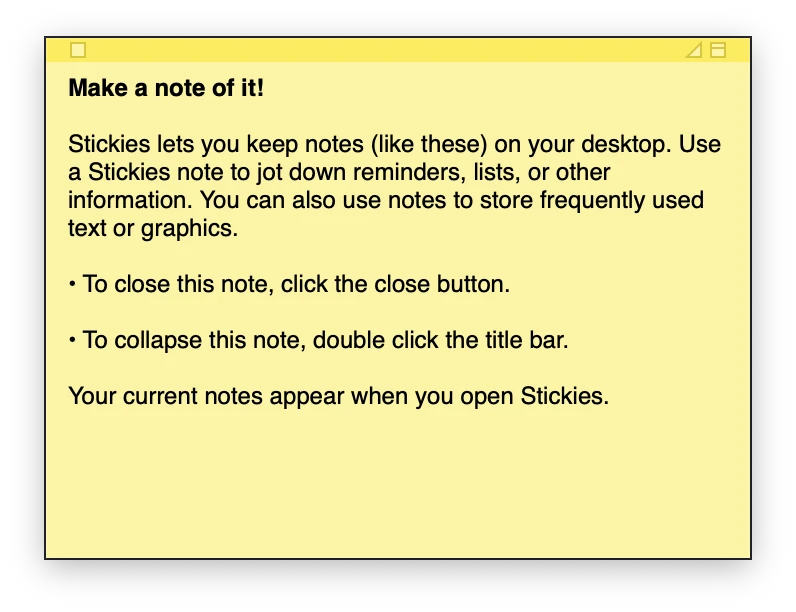
A note behaves like a small window. Drag its title bar to move it, drag an edge to resize it, and double-click the title bar to collapse it to a single line (double-click again to open it). Window > Collapse (Command-M) does the same from the menu.
Colors, text and lists
- Color: choose one from the Color menu: Yellow (Command-1), Blue (Command-2), Green (Command-3), Pink (Command-4), Purple (Command-5) or Gray (Command-6). A color per topic makes a desk of notes easier to scan.
- Text: the Font menu has bold (Command-B), italic (Command-I), bigger (Command-+) and smaller (Command-−) text, plus the full font panel (Command-T).
- Lists: press Option-Tab, type the first item and press Return. Tab and Shift-Tab change the list level.
- Default look: set up one note the way you like, then choose Window > Use as Default. New notes start with that color and font.
- Pictures: you can paste or drag an image into a note.
What Stickies can’t do is checklists. There’s no checkbox you can tick. If your notes are mostly to-do lists, see the alternatives further down.
Keep a note in front of other windows
Normally a sticky note sits among your other windows, and the app you’re working in covers it. To keep one in view:
- Click the note.
- Choose Window > Float on Top (Option-Command-F). The note now stays above every app.
- Optional: Window > Translucent (Option-Command-T) makes it see-through, so a floating note blocks less of what’s underneath.
Float on Top is per note, so you can keep one reminder floating while the rest stay behind your windows.
Make your notes come back after a restart
This is the part that surprises people. Stickies saves every note, but the notes only show while the Stickies app is open. Quit Stickies, or restart the Mac without reopening it, and your desktop is empty again. The notes aren’t gone: they’re back the moment you open Stickies.
To have them every time you log in:
- Open System Settings > General > Login Items & Extensions.
- Under Open at Login, click +.
- Choose Stickies in the Applications folder and click Open.
Stickies also has Stickies > Quit and Keep Windows (Option-Command-Q) in its own menu, which quits the app while keeping its windows to reopen with it.
Sticky notes on your iPhone too
Stickies doesn’t sync. Its notes live on one Mac. If you want them on your iPhone or another Mac, move them to the Notes app, which syncs through iCloud:
- In Stickies, choose File > Export All to Notes….
- Click Export All.
Your notes are copied into Notes, in a folder per note color, and they also stay in Stickies. From then on, writing new notes in Notes is the simpler habit if you need them everywhere.
The other built-in option: a Notes widget on the desktop
Since macOS Sonoma, widgets can live on the desktop itself (how to add widgets to your Mac desktop), and Notes has two that work like a pinned note:
- Control-click (or right-click) an empty part of the desktop and choose Edit Widgets….
- Search for Notes, then pick Note (one note of your choice) or Folder (a list of notes from one folder). Drag it onto the desktop.
- Click Done. To choose which note it shows, Control-click the widget and choose its edit option.
The widget shows the note’s text right on your wallpaper, under your windows, and it syncs, because it’s a regular Notes note. Notes also has real checklists: Format > Checklist (Shift-Command-L).
The catch: you can’t type into the widget. Clicking it opens the Notes app. And when windows are in front, widgets dim to monochrome; you can change that in System Settings > Desktop & Dock > Widgets with Dim widgets on desktop (Automatically, Always or Never).
Which one to use
| You want | Use |
|---|---|
| A quick note in view, nothing to set up | Stickies, with Float on Top for the one that matters |
| Notes that survive a restart | Stickies plus Open at Login |
| The same notes on your iPhone | Notes, with a Note widget on the desktop |
| Checklists you tick | Notes (Format > Checklist), or an app below |
| Notes written straight onto the wallpaper | An app made for the desktop, like the one below |
When you want notes on the desktop itself
Both built-in options keep notes in something: Stickies in floating windows that pile up and hide behind apps, Notes widgets in fixed-size boxes you can’t type into. If you’d rather write directly on the wallpaper, the way you’d write on a desk blotter, that’s what our app Desktide does.

In Desktide you double-click an empty spot on the desktop and type. The note becomes part of the wallpaper: there’s no window to lose, and it stays under your icons, which keep working. Start a line with [ ] and it becomes a checkbox you tick right on the desktop. Notes can use a handwritten face, sync between your Macs through your own iCloud, and Control-Option-Command-N adds one from any app. The same desktop can also show your calendar and keep files in tidy zones.
It’s honest to say when it isn’t the right pick: Desktide isn’t on the Mac App Store yet (it’s coming soon), and there’s no iPhone app, so for notes you read on your phone, Notes is still the answer. See Desktide for what it does and when it’s out.
Troubleshooting
- My sticky notes disappeared. Open Stickies. The notes only show while the app is running. Add it to Open at Login so this doesn’t happen after the next restart.
- A note keeps hiding behind other apps. Turn on Window > Float on Top for that note.
- A note is just a thin bar. It’s collapsed. Double-click its title bar.
- I’m about to lose a note. Closing a note that has text in it asks first whether to discard it. Cancel there if you still need it, or export it with File > Export Text….
- My desktop widget is gray. That’s the dimming while windows are in front. Set Dim widgets on desktop to Never in System Settings > Desktop & Dock > Widgets.
Questions
Does a Mac have sticky notes?
Yes. Every Mac comes with Stickies, in the Applications folder. Open it and choose File > New Note (Command-N) for a new note on your desktop.
Do Stickies notes stay after a restart?
The notes are saved automatically, but they only show while Stickies is open. To have them back after every restart, add Stickies in System Settings > General > Login Items & Extensions, under Open at Login.
How do I keep a sticky note on top of other windows?
Click the note, then choose Window > Float on Top (Option-Command-F) in Stickies. Window > Translucent (Option-Command-T) makes it see-through so it covers less.
Do Stickies sync to my iPhone?
No. Stickies keeps its notes on one Mac. File > Export All to Notes copies them into the Notes app, which syncs through iCloud; the notes also stay in Stickies.
Can Stickies make checklists?
No. Stickies has lists (Option-Tab) but no checkboxes. For tickable lists use the Notes app (Format > Checklist, Shift-Command-L) or an app that draws checklists on the desktop.