How to organize your Mac desktop
A Mac desktop fills up the same way for everyone: screenshots, downloads you meant to file later, a few folders, a document you’re working on right now. macOS has good built-in tools for keeping it in order, and most people use none of them. This guide goes through them on macOS 27, from the one-click fix to habits that keep the desktop clear, and then shows what an organizer app adds.
We checked every menu, shortcut and setting below on macOS 27.0.1, in Finder and System Settings.
The one-click fix: Stacks
Stacks gather every file on the desktop into neat piles, one per kind: images, PDFs, documents, screenshots, and so on.
- Control-click (or right-click) an empty part of the desktop and choose Use Stacks. You can also choose View > Use Stacks in Finder, or press Control-Command-0.
- Click a stack to open it and see its files; click it again to close it.
- To group differently, Control-click the desktop and choose Group Stacks By: by kind, by one of the dates, or by tag.
New files join their stack by themselves, so a desktop with Stacks stays tidy without any effort. To go back, choose Use Stacks again.
Stacks work best when the clutter is varied. If most of your desktop is one kind of file, one huge stack doesn’t help much; folders and sorting do.
Sort and line up your icons
Without Stacks, Finder can still keep icons in order:
- View > Sort By keeps icons arranged automatically, by Name, Kind, Date Last Opened, Date Added, Date Modified, Date Created, Size or Tags. Choose Snap to Grid to keep your own arrangement on an even grid instead.
- View > Clean Up lines everything up on the grid once, without changing the order. Clean Up By does the same, sorted by name, kind, a date, size or tags.
Then fine-tune how the desktop looks: click the desktop, choose View > Show View Options (Command-J).
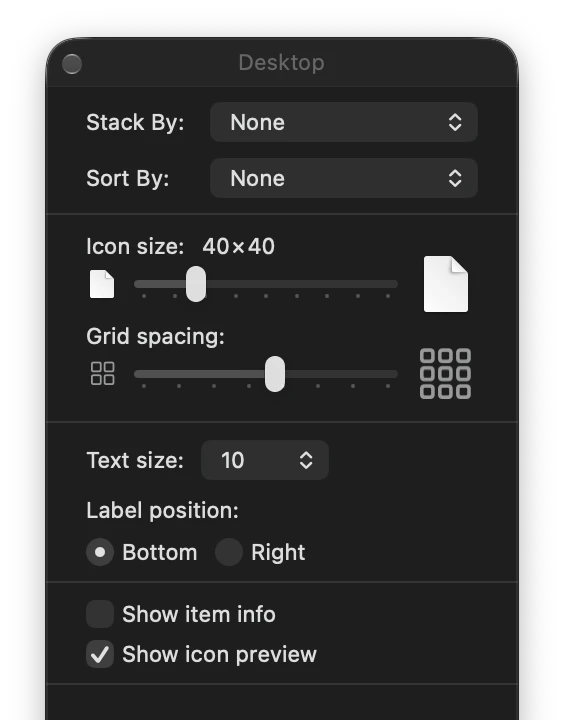
Here you can set Stack By and Sort By, make icons smaller with Icon size, pack them closer with Grid spacing, move labels to the Right of icons to fit more per row, and tick Show item info to see an image’s size or a folder’s item count under its icon.
Give everything a home
Stacks and sorting tidy the surface; folders decide where things belong.
- Make three to five folders for what you actually keep on the desktop, for example Work, Personal, To file. File > New Folder (Shift-Command-N) makes one.
- Select a few files and choose File > New Folder with Selection (Control-Command-N) to make a folder and move them into it in one step.
- Give folders a tag color (Control-click > Tags) if you want them to stand out.
The habit that keeps a desktop clean is simple: the desktop holds only what you’re working on this week. Everything else goes into a folder, or into Documents.
Stop screenshots landing on the desktop
Screenshots are the biggest source of desktop clutter. Send them somewhere else:
- Press Shift-Command-5.
- Click Options and choose a folder under Save to (a Screenshots folder in Pictures works well).
From then on, new screenshots go there. The ones already on your desktop stay where they are.
A word on iCloud: Desktop & Documents Folders
In System Settings > [your name] > iCloud > Drive, there’s a switch for Desktop & Documents Folders. Turned on, your desktop is stored in iCloud Drive, so the same files appear on your other Macs and in the Files app on iPhone and iPad.
That’s useful, but know what it does before you organize around it:
- Every Mac signed in to the same account with this switch on shares one desktop. Tidying on one Mac rearranges the files on the others.
- With Optimize Mac Storage on, macOS may keep older files only in iCloud and download them when you open them.
- Turning the switch off doesn’t move your files back automatically. Check iCloud Drive in Finder afterwards for your old Desktop folder.
Clear the desktop completely
If you’d rather see your wallpaper with no icons at all, open System Settings > Desktop & Dock and untick Show items: On Desktop. The files stay in the Desktop folder, which you can still open from Finder’s sidebar.
When you want zones, not just piles
Stacks group by kind, folders hide what’s inside them, and neither shows you where things belong at a glance. That’s what “desktop organizer” wallpapers try to do with labelled boxes for Work, Personal and so on, except a picture can’t hold files. Our app Desktide makes those boxes real.
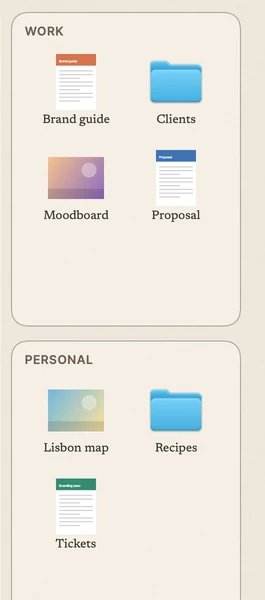
- Zones are labelled areas at the side of the desktop, drawn on the wallpaper in one of 24 themes. Click a title to rename it, and add up to five.
- Each zone is a real folder on your Desktop with the zone’s name: the Work zone is
~/Desktop/Work. Drag files onto a zone and they move into it, shown with their icon or a preview. Renaming a zone renames its folder. - Tidy in one step: tell each zone what it collects (screenshots, images, documents, video and audio, archives and installers, or folders), then choose Tidy Desktop into Zones…. Desktide shows what will move where before anything moves, and one Undo puts everything back.
- Nothing hidden: Desktide asks for access to your Desktop folder only when you turn this on, never changes the positions of Finder’s icons, and turning it off leaves the folders and files exactly where they are.
The same desktop can also hold notes you write on the wallpaper and your calendar. Desktide is coming soon to the Mac App Store; see what it does.
Troubleshooting
- Use Stacks is grayed out or missing. Control-click the wallpaper itself, or click the desktop first so Finder’s View menu applies to it, not to a Finder window.
- My icons keep jumping back into order. Sort By is set. Choose View > Sort By > None (or Snap to Grid) to place them yourself.
- Icons overlap or sit off the grid. Choose View > Clean Up.
- My desktop files appear on my other Mac. Desktop & Documents Folders is on in iCloud. That’s expected; turn it off on the Mac that shouldn’t share them.
- The desktop is empty but my files are still in Finder. Show items: On Desktop is off in Desktop & Dock.
Questions
What is the fastest way to organize a messy Mac desktop?
Turn on Stacks: Control-click the desktop and choose Use Stacks, or press Control-Command-0. Finder groups every file into piles by kind, and new files join their pile automatically.
How do I organize files and folders on my Mac desktop?
Make a few folders by topic (File > New Folder, Shift-Command-N), move files into them, then use View > Sort By or Clean Up By to keep the rest in a tidy grid.
How do I stop screenshots from cluttering my desktop?
Press Shift-Command-5, click Options, and choose another folder under Save to. New screenshots go there instead of the desktop.
Should I turn on Desktop & Documents Folders in iCloud?
Only if you want your desktop files on your other devices. Your Desktop folder then lives in iCloud Drive, and with Optimize Mac Storage some files may be kept only in iCloud until you open them.
Can I hide everything on my Mac desktop?
Yes. In System Settings > Desktop & Dock, untick Show items: On Desktop. Your files stay in the Desktop folder in Finder; they're just not drawn on the wallpaper.