How to add widgets to your Mac desktop
Yes, you can add widgets to your Mac desktop. Since macOS Sonoma, the same widgets that live in Notification Center can sit right on the wallpaper: a calendar, the weather, reminders, a clock, notes, and widgets from your other apps. This guide shows how to add and arrange them on macOS 27, how to bring in your iPhone’s widgets, how to stop them turning gray, and what to use when a widget can’t do what you need.
We checked the steps on macOS 27.0.1, against the settings on the Mac itself and Apple’s guide to adding and customizing widgets.
Add a widget to the desktop
- Control-click (or right-click) an empty part of the wallpaper and choose Edit Widgets….
- In the widget gallery, search for a widget, or click a category to browse.
- Click a widget to place it automatically, or drag it to the spot you want on the desktop.
- Click Done at the bottom right of the gallery.
Many widgets come in more than one size, and you can change the size after adding it.
Move, resize, change and remove
- Move: drag the widget anywhere on the desktop.
- Resize: Control-click the widget and choose a different size.
- Change what it shows: Control-click and choose the Edit item. For example, a Reminders widget can show a different list, a Notes widget a different note.
- Remove: Control-click the widget and choose Remove Widget.
Make your widgets easier to see
Desktop widgets live under your windows, so the more you have open, the less you see of them. A few settings help, all in System Settings > Desktop & Dock.
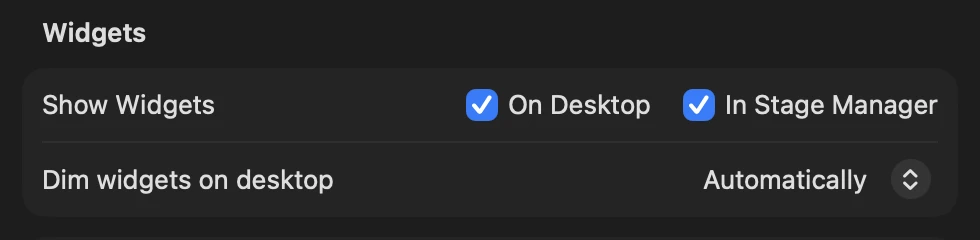
- Dim widgets on desktop: by default (Automatically), widgets fade to monochrome while a window is in front and come back to full color when you’re looking at the desktop. Choose Never to keep them in color all the time, or Always for a quieter, monochrome look.
- Click wallpaper to show desktop: in the Desktop & Stage Manager section above it. Set to Always, a click on the wallpaper moves your windows out of the way so you can see your widgets and desktop items. Set to Only in Stage Manager, a click does that only while Stage Manager is on.
- Show Widgets: untick On Desktop to hide all desktop widgets without removing them, or In Stage Manager to hide them while you use Stage Manager.
Use your iPhone’s widgets on the Mac
Your Mac can show widgets from apps that are only on your iPhone. Apple lists three conditions: the iPhone runs iOS 17 or later, it’s signed in to the same Apple Account as the Mac, and it’s near the Mac or on the same Wi-Fi network.
- Open System Settings > Desktop & Dock.
- In Widgets, turn on iPhone Widgets (Apple’s guide calls it “Use iPhone widgets”).
- Open Edit Widgets…; the iPhone’s apps now appear in the gallery.
On our test Mac, which had no iPhone nearby, the switch wasn’t shown at all, so if you don’t see it, check the three conditions first. If you click an iPhone widget and see a message asking you to open the app on your iPhone, that app isn’t installed on the Mac; you’ll need the iPhone to interact with it.
Widgets in Notification Center
The same widgets can live in Notification Center instead, where they don’t compete with your windows:
- Click the date and time in the menu bar.
- At the bottom of Notification Center, click Edit Widgets.
- Click a widget, or drag it to the top-right corner of the screen.
Click anywhere on the desktop to close Notification Center.
What widgets can’t do
Widgets are glanceable, not workable, and that’s by design:
- You can’t type into them. A Notes widget shows a note; to change it, the click opens Notes. A Calendar widget shows events; to add one, you go to Calendar.
- They come in fixed sizes. Even a large calendar widget shows a handful of events, not your whole month at a readable size.
- They hide behind windows and dim when they do, unless you change the settings above.
If you mainly want notes on your desktop, see our guide to putting sticky notes on your Mac desktop, which covers Stickies and the Notes widget.
When you want the whole desktop, not a box on it
If you like widgets but want to write and plan in them, not just look, that’s the gap our app Desktide fills. It comes with its own Today widget, and goes further by turning the desktop itself into the workspace.

- The widget: Today in small, medium or large, with today’s events and reminders, the next days with something on them and, in the large size, the notes on your desktop. It follows your Desktide theme’s colors and needs no Calendar access of its own.
- The desktop itself: instead of a calendar widget, a Month layout turns the whole wallpaper into your calendar. Double-click a day and type: “Dentist Friday 10:00” becomes an event, anything else a reminder, in your real Apple Calendar and Reminders. Notes are written straight onto the wallpaper too, with checkboxes you tick in place.
Desktide is coming soon to the Mac App Store, and it doesn’t replace widgets from your other apps: the two sit side by side on the desktop. See Desktide for the details.
Troubleshooting
- Edit Widgets… isn’t in the menu. Control-click the wallpaper itself, not a file, folder or window. If the desktop is covered, click the wallpaper first or use Notification Center.
- My widgets are gray. That’s Dim widgets on desktop at work. Set it to Never.
- My widgets vanished. Check that Show Widgets: On Desktop is ticked in Desktop & Dock.
- The iPhone Widgets switch is missing. Check the iPhone’s iOS version, that both devices use the same Apple Account, and that the iPhone is nearby or on the same Wi-Fi network.
- A widget shows old data. Open its app once; macOS decides how often widgets refresh.
Questions
Can you add widgets to the Mac desktop?
Yes, since macOS Sonoma. Control-click the wallpaper, choose Edit Widgets…, then click or drag a widget from the gallery onto the desktop and click Done.
Why are my desktop widgets gray?
macOS dims them to monochrome while windows are in front. To keep full color, open System Settings > Desktop & Dock and set Dim widgets on desktop to Never.
Can I use my iPhone's widgets on my Mac?
Yes, if your iPhone runs iOS 17 or later, uses the same Apple Account as your Mac and is nearby or on the same Wi-Fi network. Turn it on in System Settings > Desktop & Dock > Widgets.
How do I remove a widget from the desktop?
Control-click the widget and choose Remove Widget.
Why do my widgets disappear behind windows?
Widgets sit on the desktop, under your windows. Click the wallpaper to move windows out of the way, if Click wallpaper to show desktop is set to Always in Desktop & Dock.